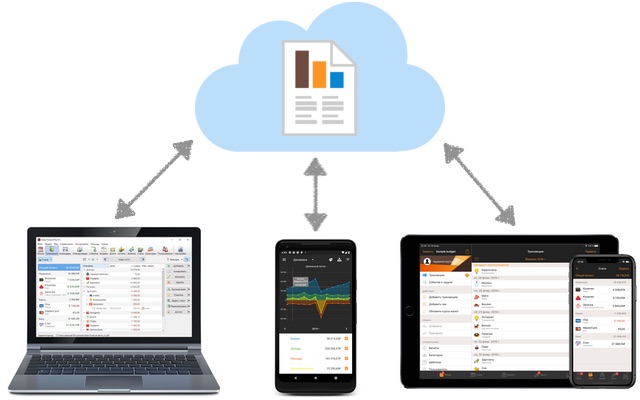
Several users can work with a single database file simultaneously. We recommend using automatic synchronization embedded into the app.
Working together with one database through third-party cloud services, local network, NAS, etc.
Place your database file in the cloud or shared network folder and work with it from your phone, tablet or computer. Changes made on different devices will be merged in one file and automatically appear on other devices within a few minutes.
This synchronization method depends entirely on the corresponding cloud service! Access to the cloud may be intentionally restricted or accidentally broken in the next update of the cloud client app. Regularly check that the file is updated in the cloud and make backups.
Further configuration depends on the device used.
PC or Mac
Install the corresponding cloud client app (iCloud, Dropbox, Google Drive, OneDrive, etc) and cloud contents will appear on your PC like ordinary folder. Then work with the file as usual (double click to open it). All changes made from different devices will be merged in one file and will appear in the program within a few minutes.
iPhone or iPad
We recommend using iCloud on Apple devices.
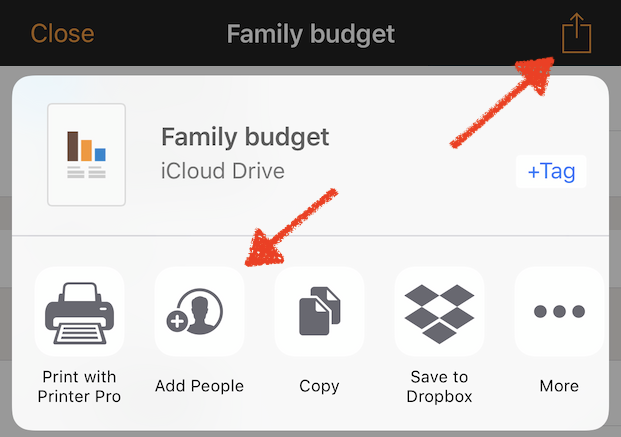
To share a budget with family or colleagues tap on the Share button, then tap "Add people" (if there is no button, this means that the file isn't located in iCloud Drive). The file will appear in the other users iCloud and they'll be able to make changes (if allowed) and see the changes are made by other users.
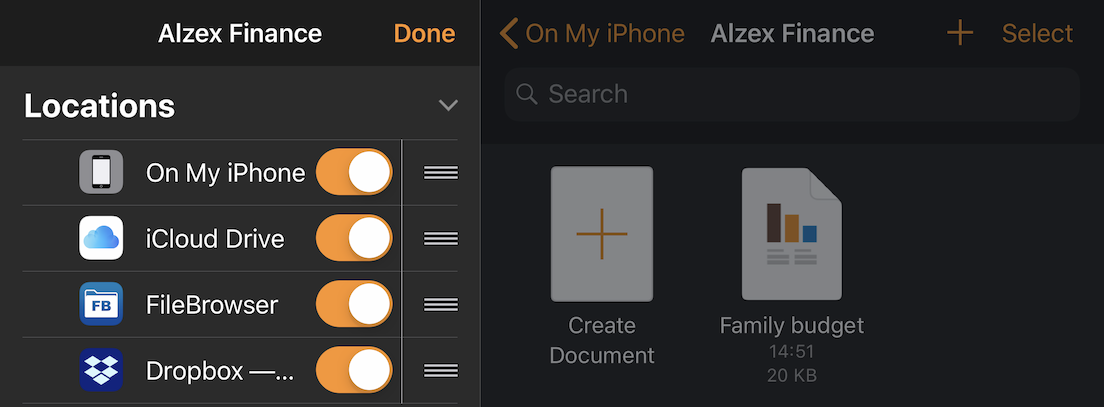
The Files app lets you add third-party cloud services and apps that provide access to local networks, FTP-servers, NAS and so on. Download and set up a third-party app, then enable it in the "Locations".
To share a budget with other users follow the instructions of the corresponding cloud service. Sometimes a conflicted copy of the file can appear, simply delete it (your changes won't be lost).
Android
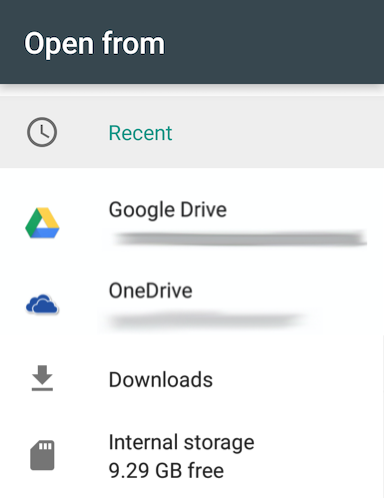
Cloud service must support direct access to files in cloud via Storage Access Framework. Tap "Open" button and you'll see all available sources.
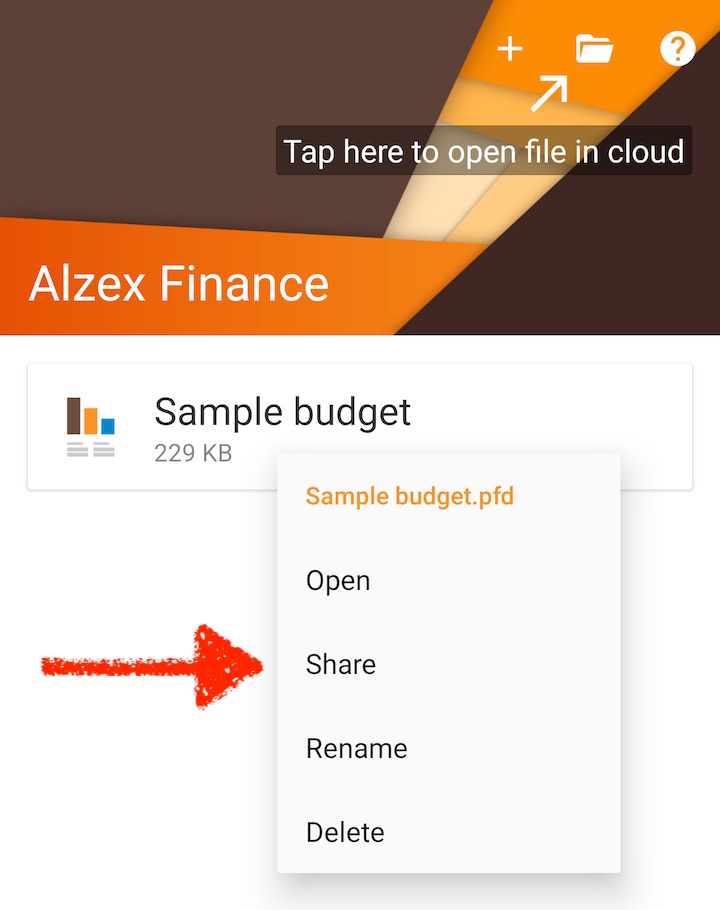
To copy your file into cloud tap on it and hold until menu appears, then tap "Share" button (you can delete local copy of the file after that). To open file in cloud tap "Browse" button.
To share a budget with other users follow the instruction of the corresponding cloud service. Usually you can choose: give a full access to the file or prohibit editing (view only).
Usually changes appears on other devices within a few minutes. If they don't, check is "Transfer files only over WiFi" option set in Google Drive settings. Try to restart your phone, reinstall the app and Google Drive app too.